
User Guide
Everything you need to check your team's levels, build routines, get start values and send reports to families. Updated October 2026.
Quick start
- Sign in at routinemasterpro.com/app and choose your password. A new gym gets a Get started checklist at the top of the roster that walks through the steps below.
- Add your gymnasts, one at a time or all at once from a CSV file, with their level or Xcel division.
- Enter routines skill by skill. Requirements tick themselves and the start value updates as you go.
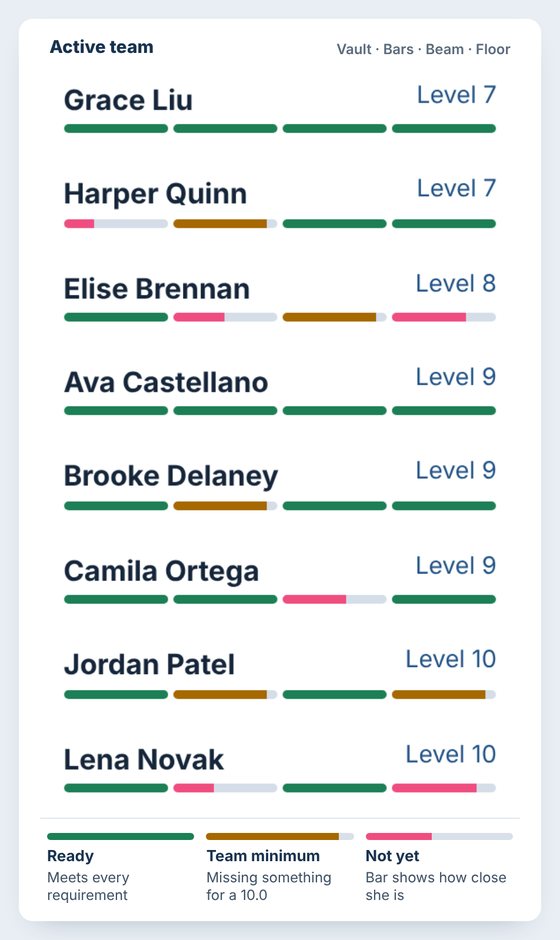
- Check the roster bars: green is ready, gold meets your team minimum, pink isn't there yet.
- Open the report to email, share or print it for her family.
1. Signing in
Go to routinemasterpro.com and tap Sign in, or go straight to routinemasterpro.com/app. The app works in any browser on a phone, tablet or computer. There is nothing to install.
Your first sign-in
- Your gym owner sends you your email and a temporary password.
- Sign in with them. You'll be asked to choose your own password (8 or more characters).
- Read the short disclaimer and terms once and tap Agree and continue.
Forgot your password?
On the sign-in screen, type your email and tap Forgot password?. A reset link arrives by email within a minute or two (check spam too). The link opens the app at a "choose a new password" screen. If no email comes, ask your gym owner to reset it for you from the Coaches screen.
The Today screen
When you open the app, Today shows what's on today: the day's assignments (tap one to record it), any testing day (tap it to enter scores), how many gymnasts meet everything, the ones closest to meeting everything, the ones with no routines yet, and new messages from us. On a computer it sits next to the roster whenever no gymnast is open; on a phone the app opens on it.
On a phone: the buttons at the bottom
A bar along the bottom of the screen takes you anywhere in one tap: Today, Roster, Assignments, Testing and Reports (team report, assignment reports or testing results). Assignments and Testing only show when your gym has them.
2. Your roster
The left side of the app lists your active gymnasts. Each one has four bars, one for each event: vault, bars, beam and floor. You can see who's ready to compete before opening anyone.
Get started checklist
A new gym sees a Get started card at the top of the roster: add your gymnasts, build a routine, open a parent report and (owners) invite your coaches. Each step ticks itself when it's done and the button takes you to the next one. The card goes away once everything is done, or tap Hide.
Grouped by level
On a big team the roster is grouped by level, with each level closed. Each one shows how many gymnasts are in it and how many meet everything. Tap a level to open it and tap it again to close it, or use Open all levels / Close all levels. The app remembers which levels you left open. Searching, picking one level in the menu, or a roster of 12 or fewer shows everyone without the groups.
Find and filter
- Type in Find a gymnast to search by name.
- Use the level menu to show one level, one Xcel division, all Development or all Xcel.
- Active Team and Archived switch between current gymnasts and ones you've archived.
Add gymnasts
- Tap + Add gymnast under the roster.
- Type her name, then choose Development, Xcel, NGA, USAIGC or FIG / Elite and her level or division.
- Tap Add gymnast. Her page opens so you can start on her routines.
Kids who don't fit a level (pre-team, TOPs, a boy training with the girls): choose Misc (no level) as the Program. Misc gymnasts have no routines to build; you put them on assignments and testing days by picking Misc under Levels, or through training groups. They don't count toward your plan's gymnast limit. To move one to a real level later, change Program on her page.
Adding your whole team at once: tap + Add gymnast, then Import a whole roster (.csv), and pick a spreadsheet saved as CSV. It needs a Name column and a Level column (6–10, an Xcel division such as "Gold", or for elite gymnasts "FIG Senior", "USA Junior" or "Hopes 11-12"). Program and Parent email columns are optional. Put Misc in the Program or Level column for kids without a level.
Archiving: on a gymnast's page, Archive moves her off the active team without deleting anything. Open the Archived tab and tap Restore to bring her back.
3. A gymnast's page
Tap a name on the roster to open her page.
At the top
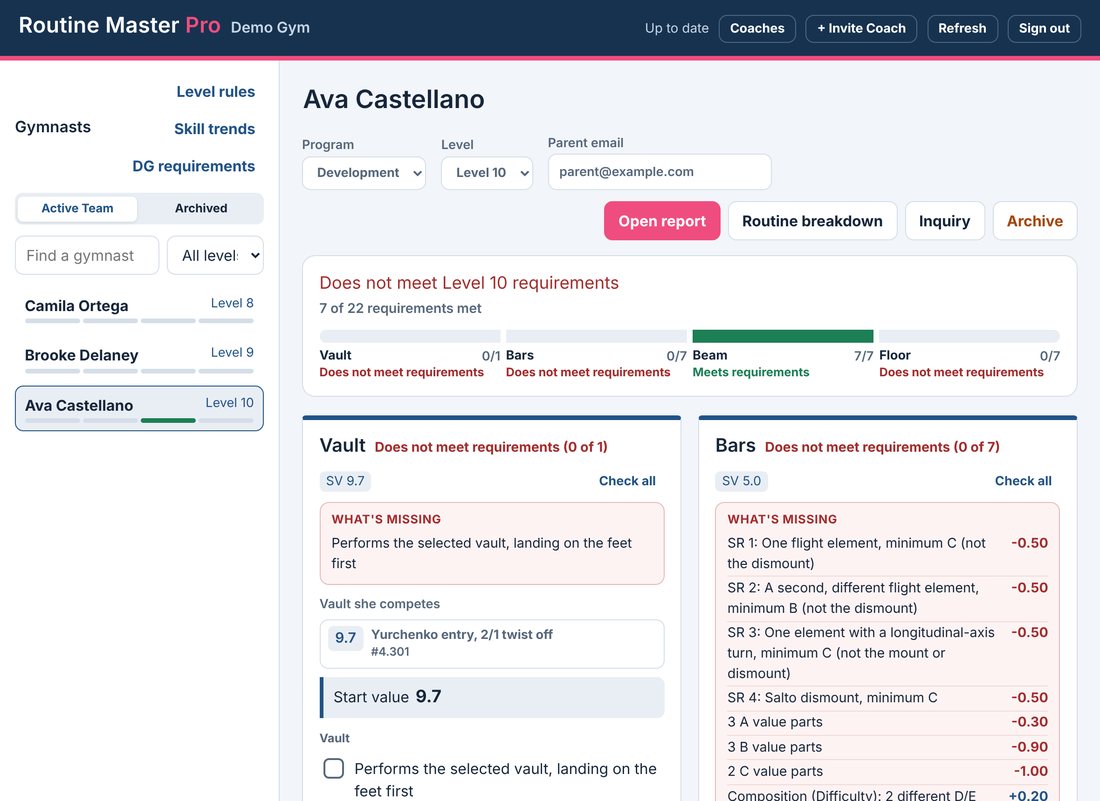
- Program and Level: change these when she moves up. Her checklist and start values switch to the new level's rules.
- Parent email: used when you email her report. To send it to more than one parent, type up to 3 addresses separated by commas (for example mom@example.com, dad@example.com). Each one gets the report.
- Open report opens her family report (section 10). Tools holds everything else for her, in groups: Look closer (Routine breakdown, Skill ideas, Compare to other gyms), Plan ahead (Try at another level), For meets (Score inquiry) and Manage (Archive) (section 11).
- The summary card says whether she meets her level overall, and how many requirements she's met.
Event cards
Each event shows her start value (SV), and below it a What's missing box listing exactly what she still needs and what it costs, and the full checklist of requirements for her level.
- Requirements that the routine proves (special requirements, value parts, composition) tick themselves as you enter skills, and show which skill met them.
- Requirements that need a coach's eye, like landing the vault on her feet, are boxes you tick yourself. Check all ticks every box on that event.
- Your gym's own requirements and minimum start values (set by your gym owner) appear on the same card.
- Coach note on each event, and the Overall note for family, are printed on her report.
4. Entering routines
Adding skills
- On an event card, tap + Add first skill (or + Add skill).
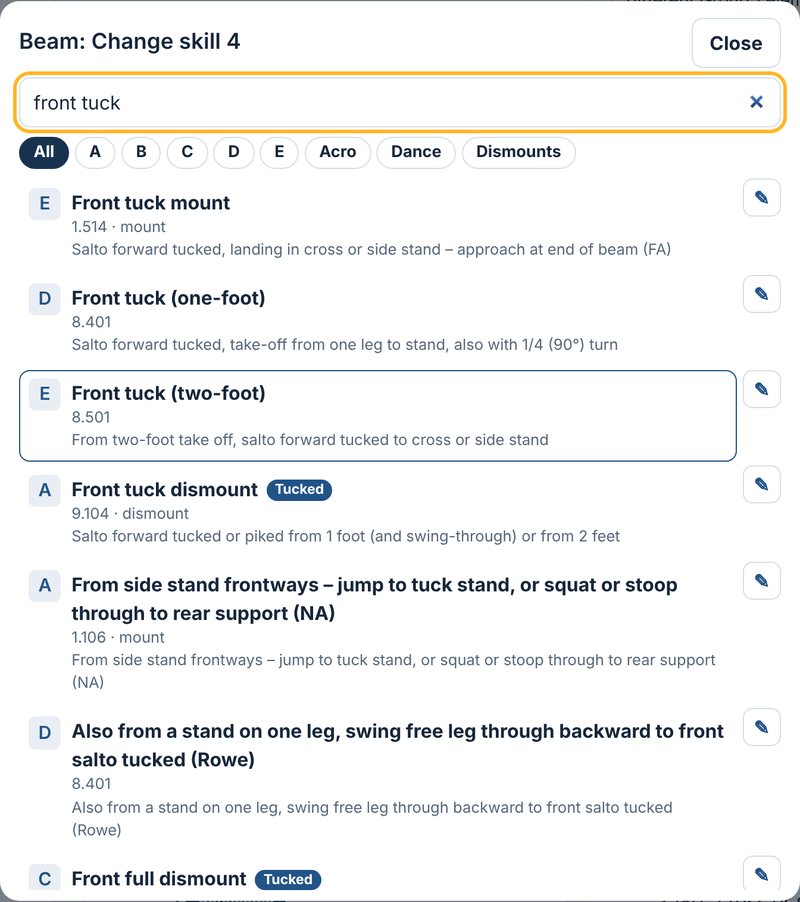
- Search by name ("front tuck", "switch leap") or by Code number ("8.501").
- Narrow the list with the value and type buttons: A–E, Acro, Dance, Dismounts.
- Tap the skill. It's added in order with its value.
Every element in the Code of Points is there. Where the Code allows more than one body shape (tucked, piked, stretched), the shape is shown as a tag and counted separately. On floor, the split leap and the split jump (1.101) are separate picks, each worth an A, so she gets credit for both.
Changing the routine
- Tap a skill to change it to a different one.
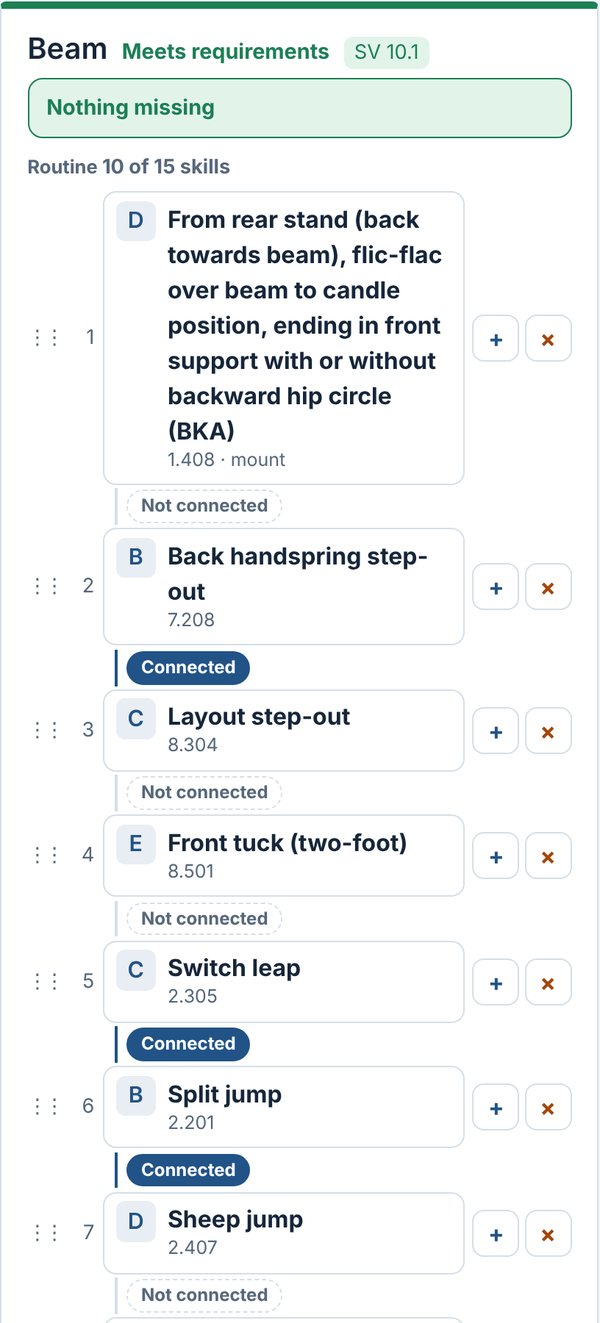
- + next to a skill adds a new skill above it. × removes it.
- Drag the dotted handle on the left of a skill to move it up or down.
- Tap the link between two skills to connect them. On bars and beam it switches between Not connected and Connected. On floor it cycles Not connected, Direct and Indirect.
- Leaps and jumps on beam and floor count as reaching the 180° split. If she won't reach it, tick Won't reach the 180° split under the skill. It then counts one value lower (C becomes B, B becomes A) and no longer counts as a 180° leap. Untick it to undo.
- Routines can have up to 15 skills.
Fix-it notes
When something looks like a slip, a yellow note pops up under the skill with a one-tap fix: the same skill added twice in a row (Remove this one or Connect them), a repeat that gets no credit (Swap it), a dismount that isn't last (Move it to the end), a beam mount that isn't first (Move it to the start), or no dismount yet on bars or beam. Tap Dismiss if you meant it.
Vault
Tap the vault box and search by name or number. The vault's value becomes her vault start value. Tick the vault requirement once she's performing it.
5. Copying routines and routine sets
Copy a routine instead of starting from scratch
Tap Copy from a teammate or base routine under any event.
- Her own routines: her routine from another level or another set, such as her Competition routine when you're working in a set.
- Teammates: another gymnast's routine on the same event.
- Base routines: your gym's saved team routines. Save as base adds a routine to this list, and Apply to gymnasts… gives it to several gymnasts at once.
Copying gives her her own copy, so changing it later never changes anyone else's. If she already has a routine on that event, the app asks before replacing it.
Fill a whole team fast
- Levels 6, 7 and 8: most girls at these levels do your gym's same routines, so the box above her events starts there. Give her the Level 7 base routines fills every empty event from your gym's base routines in one tap. Or tap Copy from next to a teammate at her level. No base routines yet? Once a gymnast's bars, beam and floor are built, the app asks whether to Save as Level 7 base routines, so every Level 7 after her starts from them.
- Copy all events from a teammate: on a gymnast's page, the box above her events copies a teammate's vault, bars, beam and floor in one tap. Then change only the skills that are different. After your first gymnast, this is the quickest way through a team.
- Fill from a photo: snap a photo of her routine sheet, notebook page or card. The app reads the skills, matches each one to the skill list for her level and shows them to you before anything is saved. Anything it can't match is listed so you can add it by hand. From a photo under an event fills just that event.
- Type it out: write her routine in your own words, like “kip, cast HS, ToT HS + pak, squat on, flyaway”, with + for connections. The app matches each skill to the skill list and shows them to check, just like a photo. During the free trial you can fill one routine on each event from a photo or typing.
- Keep adding: after + Add skill, the skill list stays open for the next skill, so you can add a whole routine in a row. What usually comes next on your team shows at the top. Tap Close when you're done.
What routine sets are
A routine set is a named group of routines you're planning, like “2027-28 season” or “Upgrade”. You make a set once and every gymnast gets a tab for it, with her own routines inside.
- Competition is what she competes now. Team lists and Level insights only ever use this tab.
- Open set report: while you're in a set, the button at the top of her page makes the same one-page parent report as her level report, for her routines in that set, checked against the set's level. Download, email, print or share it the same way.
- Each set has its own tab showing how many events have a routine and the level it's checked against, for example “2 of 4 events · Level 8”. The tab you're on is filled in.
- The first time you open a set for her, it starts with her current routines, judged at the set's level, so you only change what's different. Skills that aren't on that level's skill list are left out, and a message tells you which. If she already has anything in the set, nothing is replaced.
- Inside a set you build routines exactly as on Competition. Start values and requirements follow the set's level.
The “Level for this set” drop-down
In a set, her Program and Level boxes are replaced by Level for this set. It picks which level's rules her routines in that set are checked against.
- It starts at the next level up (a Level 7 starts at Level 8). You can pick a level in any program, grouped by program: Development, Xcel, NGA, USAIGC, and FIG / Elite if your gym has it. So a Level 10 can have an "Elite" set checked against FIG Senior.
- When the set is still empty, picking a level in a different program starts it from her current routines too. Between USA Gymnastics Levels 6–10 and FIG / Elite, skills with the same Code number carry over; anything that isn't on the new list is left out, and a message tells you which. Between other programs only the vault may carry over, so you build the rest.
- It's set per gymnast and per set, so teammates can plan different levels in the same set.
- It does not change her real level. Only the Level box on the Competition tab, or the move option when you bring a set in, does that.
The routine set buttons
| Button | What it does | Who |
|---|---|---|
| + New set | At the end of the tabs. Makes a new named set. Every gymnast gets the tab straight away. | Any coach |
| Bring into current routines | In a set. Copies the set's routines into her Competition routines, saving her old ones first. | Any coach |
| Rename set | In a set. Changes the set's name for every gymnast. | Any coach |
| Remove set | In a set. Hides the set's tab for everyone. The routines are kept. | Owners and admins |
Plan next season, then bring it in
- Open any gymnast and tap + New set. Name it, for example “2027-28 season”.
- For each gymnast, open the set's tab, check Level for this set, and change her routines (they start as a copy of her current ones).
- When she's ready, tap Bring into current routines. Choose the Events to bring in.
- Under Save her current routines in, pick another set or A new set… (it suggests this season's name).
- If the set is at a different level, leave Also move her to Level X ticked to move her up too.
- Tap Bring in and confirm. Her old routines are saved in the set you picked.
6. Practice assignments
Plan daily assignments, log makes and misses for every gymnast right on the floor, and see who is consistent before meet season. Open it with the Assignments button above the roster.
Set up groups
- Open the Training groups tab.
- Type a group name (Group 1, Group A, Red...) and press Add group. Tap a colour to tell groups apart.
- Under Gymnasts, pick each girl's group. The first time you pick, it counts for the whole season.
- Moving her later? Pick the new group, choose the date it starts and press Save move. Her earlier practices keep her old group.
- Same change every week? Open Weekdays under her name, for example Group 2 on Tuesdays.
- Trains with more than one group? Open Also trains with under her name and tick the other groups. She shows under each of those groups on Record practice and the tablets, and gets their group assignments too. The group card lists her under "Also trains with this group".
- See who's in each group: every group lists its gymnasts under its name, level by level with a count for each level, plus anyone who joins it on certain weekdays, and a No group yet box shows who still needs one. Tap a group's count (for example 3 gymnasts), or use the Show buttons above the list, to see only that group's gymnasts.
Build your assignments
- Open the Saved assignments tab and press + New assignment.
- Give it a name and an event (Vault, Bars, Beam, Floor, Conditioning or Other), for example "Bars routine day".
- Add its parts and a target for each: "Full routines 3", "Kips 5", "Halves 3". Up to 20 parts.
- Pick each part's type: Routine, Half routine, Skill, Complex, Sequence, Drill or Conditioning. Reports use it to show her routine hit rate apart from her skills and drills. Type the name first and the app often picks the type for you.
- Leave a target blank or 0 for a check-off line: no counting, she just taps ✓ when it's done. Lines with the type Conditioning work the same way but keep their number ("Kettle bell swing × 12"): she does all of them, then taps ✓ once. On an assignment whose event is Conditioning, nothing is counted line by line: you mark the whole assignment Completed or Not completed.
- Tap ▸ More under a part for three extras (all optional):
- What counts: a note like "Handstand within 10°. Bent arms = miss." Coaches see it behind the ⓘ on her card, and gymnasts see it on the event tablet.
- No more than __ tries: for "Make 3, try no more than 5".
- Makes must be in a row: for "Make 3 IAR". A miss starts her count again.
- One assignment, several levels. When most of an assignment is the same for every level but one level does something extra, tap ▸ More under that line, then Change next to Who does this line and pick the level (for example Level 9). Other levels never see it and it doesn't count against them. Tap + Give a level its own number to give a level a different number for the same line, like Level 8 × 3 and Level 9 × 5 (tap ✕ to take one off). The line shows a tag like "Level 9 only" so coaches know who it's for.
- Use the ↑ ↓ arrows under a part to move it up or down. You can do this even after practice has started: turns already logged move with their part.
- On a Conditioning assignment, tap its Body area: Upper body, Lower body, Core or Full body (pick more than one if it fits), or type your own, like Flexibility, and press Add. Your own ones show for every coach after that. Then use the Body area filter above your list to find, say, every core circuit.
- Open Tags to mark its levels, season, intensity and type (all optional).
- Press Save assignment. It stays in your library to reuse all season.
- Need another one that is almost the same? Press ⧉ Duplicate on its card. A copy opens with every line, number, tag and folder filled in and "(copy)" after the name. Rename it, change what you need and press Save assignment. The original stays as it is.
Your saved assignments are grouped by event (Vault, Bars, Beam...), each closed with a count: tap an event to open it, or Open all. Each card shows the date it was added and when it was last put on a day. Keep a long list tidy: tap 📁 Folder on a card to put it in a folder inside its event (type a new name or tap one you have), and the event then shows its folders as rows you open and close. Open a folder for Rename folder or Remove folder (its assignments stay), or set the folder when you edit an assignment. Tap the ☆ on a card to star your favourites: starred ones show first in their event and in the Schedule picker. Archive puts away ones you aren't using: they leave your list and the Schedule pickers, days they're already on stay as they are, and Archived next to Sort shows them with Bring back. Sort picks Newest first, Last used or A to Z. Find one fast with the event buttons, the level, season, intensity and type filters, or the search box at the top of your list; those show the matching assignments straight away. Have lots on paper or in a spreadsheet? Press Import from a spreadsheet, download the template, fill it in (one line per row), then choose the file or copy and paste the cells. The Line levels column marks a line for some levels only (like 9) or gives a level its own number (like 8:3).
Written on paper or a whiteboard? Press Import from a photo and snap it. The app reads the assignments, the lines and their numbers, and shows them in the import box for you to check and fix before you press Add. If the sheet marks a line for one level (like "L9 only") or gives levels different numbers, that comes through too; lines with nothing written are for everyone. The photo isn't kept.
Want to read one up close? Press ⛶ Full screen on any saved assignment, on an assignment in the Schedule, or at the top of Record practice. Every part shows in big type with its target, rules and What counts. Use A− / A+ for text size, Previous / Next to page through, and Fill the screen to hide everything else.
Show it on a TV in the gym. Press 📺 TV on an assignment in the Schedule or at the top of Record practice (or 📺 TV mode inside Full screen). The TV shows only the assignment: big, on a dark screen, with nothing to tap. Pick One at a time (it can change by itself every 20, 45 or 90 seconds) or All at once to show every assignment that day, and tap an event to show just that event. The buttons hide after a few seconds; move the mouse or tap to bring them back. To get it on the TV, mirror your iPad or iPhone with AirPlay (Screen Mirroring), cast the Chrome tab to a Chromecast or Google TV, or plug a laptop into the TV, then press Fill the screen.
Share and copy assignments
- Shared library tab: assignments other gyms have shared. Filter by event, level, season, intensity and type, or search.
- Copy to my gym puts one in your Assignments. Change it however you like; the other gym's version never changes yours.
- To share one of yours: in Assignments, press Share with other gyms, pick its levels, season, intensity and type, and choose whether to show your gym's name.
- Only the assignment is shared: never your gymnasts, results or notes. Press Stop sharing any time.
- Spotlight: each week or month a coach or gym is featured at the top of the Shared library, with their picks ready to copy. Look for the ★ Master Coach's Pick badge too. Both also show under Featured assignments at the top of your Assignments tab.
- Picked to be in the Spotlight? You'll get a message in Help, and a ★ You're in the Spotlight box appears in the Shared library and Assignments. Press Pick my assignments, tick the ones you want (from your gym's shared ones or the whole library), add a short line and a photo if you like, and save. You can change your picks until your spotlight ends.
Put assignments on days
- Open the Schedule tab, or press Put on a day on an assignment.
- Pick the levels and/or training groups it's for. Leave them blank to include everyone. Pick both and it goes to everyone at those levels and everyone in those groups, so a gymnast always gets her level's assignment, whatever group she's in that day. Kids who don't fit a level? Add them with Program Misc and pick Misc here. Need one more gymnast from another level or group? Pick her under Also add gymnasts: she gets the assignment too, on top of the levels and groups. Lines set for only some levels follow her own level.
- Tap one or more days, then press Add.
- In the Schedule list, today and tomorrow are open; other days show their assignment names on one line, so tap the day to open it (or Open all days). Three or more empty days in a row fold into one line; tap Show these days to add to one.
- Need it again? Press Copy to other days. Edit changes only that day (including moving its parts with the ↑ ↓ arrows); your saved assignment stays the same.
- Made a one-off you want to use again? Tick Also save it to Saved assignments before you press Add. Already on a day? Press Edit on it, then + Add to Saved assignments.
Log practice on the floor
- Open the Record practice tab. Today's date is already picked; use the arrows for other days.
- Tap the assignment at the top, then tap your group to see only your kids.
- On each girl's card tap + when she makes it and − when she misses. Parts turn green when she hits her target.
- On bars and beam there's a third, orange button: + extra (bars: made it with an extra skill) and + broken (beam: made it with a broken connection). It counts as a make, and reports show how many makes had an error.
- On a vault assignment, set the Landing surface (Soft, Raised soft, Competition, Stack, or type your own). You can also set it when you build the assignment.
- Parts with in a row or no more than __ tries show her best run and tries used (for example "2 in a row · 4/5 tries"). When she gets it, the part says met; when she runs out of tries first, it says not met. Either way its buttons stop taking taps.
- Tap the ⓘ next to a part to see what counts.
- On a Conditioning assignment her card lists every line with its number and two buttons: ✓ Completed when she did it all, or Not completed, which asks what she didn't do or get to. Tap those lines and press Save (add why in Notes if you like). Reports then say Completed or Not completed with what she missed. Tap Completed again to clear it.
- Tapped the wrong one? Press Undo last tap at the bottom.
- Group today on her card moves her to another group just for that day.
- Type how practice went in the Notes box under her card. It saves when you tap away.
- Two assignments on the same event (Level 8 bars and Level 9 bars, say)? Tap All Bars to see every girl on one screen.
- Print (next to the date) prints the assignment with every girl's results and notes.
Event stations (tablets)
- Owners and admins: open Gym settings → Event tablets (or Event stations at the top of Practice), then Add station. Give it a name (Bars tablet), pick the event and choose a coach PIN.
- On the tablet, open routinemasterpro.com/station and type the 6-character code. That's it: the tablet remembers.
- The top of the tablet shows today's assignment and its parts. Gymnasts pick their group, tap their name, then − miss, + made, or the orange + on bars (extra skill) and beam (broken connection). A key at the top of her screen explains the buttons, and each part shows its What counts note. On parts with in a row or a try limit she sees her best run and tries used, and the buttons stop once she makes it or runs out of tries. Undo last tap fixes a slip, and the tablet goes back to the names after a short while.
- On a Conditioning assignment the gymnast sees the whole list and taps I did it all, or I didn't finish and then picks what she didn't do or get to.
- Press Coach on the tablet and enter the PIN to switch its event, fix a gymnast's taps, run Testing or forget the tablet.
- Add a line to an assignment (Coach menu): pick its type (Routine, Skill...) and add a part for everyone on today's assignment (today only), for everyone in a group, or for one gymnast. Lines for a group or one gymnast go on her own version of the assignment and come back every time she gets it, until a coach takes them off in the app.
- Change today's assignments (Coach menu): change a line's name, number or type, move lines with ↑ ↓ (turns already logged move with them), and tap ▸ More for What counts, no more than __ tries and makes in a row. You can also add or take off lines, swap for one of your saved assignments, or add another saved assignment to today. Changes are for today only; your saved assignments stay the same.
- Absent, injured or modified (Coach menu): pick a gymnast to mark her absent today (she comes off the tablet; tap Not absent under Absent today to bring her back), mark her as missing just this event today (late or left early: Missed Bars today; Not missed brings her back), mark her injured on this event or clear her, or tap Give her her own version to change her targets with − and +, take a part off, add her own lines, or put her back on the full assignment. It works just like Injured and Modified on Record practice.
- Today's report (Coach menu): hit rates for today, or any earlier day (Day before, or pick a date), for all events or just one, by event, by assignment (line by line) and by gymnast, with how the gymnasts and coaches said it went. Pick a group to see just them, or sort by lowest hit rate to spot who needs help.
- Gymnast routines (Coach menu): look up any gymnast's routines during practice: every event with its skills in order, connections, start value, whether she meets the requirements, the coach note and her video link, plus any routine sets (Upgrade, next season). Find her by name, level or group. Tap ✎ Edit on an event to change her routine in the full routine builder (on a paired tablet a coach signs in first), then Done: back to the tablet. The tablet signs the coach out again.
- Only one tablet or laptop? Open Practice and press Station mode, pick a coach PIN, and the device you are on becomes the gymnasts' screen. It shows every event's assignments for today; a coach can pick one event from the Coach menu (or All events to see them all again). To get back to the full app, press Coach, enter the PIN and tap Back to the full app.
- Gymnast reflections (off until you switch it on). Owners and admins: in Event stations, tick Gymnasts can write a reflection for each event. Each gymnast then gets a My reflection box under her assignments on the tablet (and in Station mode). She taps Write my Bars reflection and answers any of four short questions: what went well, what was hard, what she'll work on next time, and anything else she wants her coaches to know. One per event a day; writing again replaces it. The tablet never shows what was written, so gymnasts can't read each other's.
Absent, Injured and Modified
- Absent: she's out today. Her card closes and the day is left out of her numbers.
- Missed (event): she was late, left early or was out for just this event (for example, missed Bars but came in for Beam). Tap Missed Bars on her Bars card: that card closes and Bars today is left out of her numbers, but she stays on her other events. Tap it again to bring her back. Reports show a Missed count. On a tablet: Coach menu → Absent, injured or modified → pick her → Missed Bars today; Not missed brings her back.
- Injured: tick it on the event she's hurt for. She's injured on just that event (for example Beam), so you can still score her on her other events. It stays ticked until a coach unticks it on the day she's cleared. Add a note like "left wrist". Her buttons stay usable if she does part of the work.
- Modified: give her her own version of the assignment. Change her targets, tap ✕ to take a part off for her (it disappears from her card and tablet; Bring back undoes it), and add her own extra lines (type one, or pick a part from your saved assignments, with how many). When the assignment came from your saved Assignments, her version comes back every time she gets it, until you untick Modified. Her extra lines show on the event tablets too. Quicker: tap + Add a line for her or Take a part off under her parts on Record practice.
Check progress
- Open the Reports tab and pick the dates (Last 7 days, Last 30 days, This season, or your own).
- Filter by event, level, group or line type (Routine, Skill...). Hit rate is makes out of all tries. On bars and beam, Clean counts only plain makes, with no extra skill or broken connection.
- By line type shows the team's routine, half routine, skill, complex, sequence, drill and conditioning hit rates, and the table has a column for each.
- Tap a gymnast to see each part and her recent days. Parts with in a row or a try limit say whether she met them, and her Goals met box counts how many she met.
- Before meets, sort by Lowest hit rate first to see who needs more numbers. A big team shows the first 15 gymnasts; tap Show all for the rest (Print always prints everyone).
- Tap One gymnast (or Full report under a girl in the table) for her practice day by day, with every note, for the dates you pick.
- A line she was given but has no makes or misses on says Not tried. It never counts as 0% and stays out of her hit rate. If she did it on some days and skipped it on others, it says how many times she didn't try it.
- Print prints the report you're looking at. In One gymnast, Email to parent sends her practice report as a PDF to the parent email on her page; untick Include coach notes to leave your notes out.
- For the whole team at once, tap Email or print all: pick a level or group, untick anyone to skip, then choose Email to parents or Print. Print puts every ticked gymnast's report in one print job, each on its own page (Download as one PDF saves it instead). When the reports are ready, the print window opens by itself on a computer; on a phone or iPad (or if nothing opens), tap Open to print and print or share from the PDF.
- Gymnast reflections: if your gym has switched them on (Event stations), what she wrote on the tablet shows in One gymnast under that day and event, and Whole team lists the newest ones for the event you picked. Remove deletes one for good. Parents see them only when you tick Include her reflections before you email, download or print her practice report.
7. Testing: physical abilities and skills
Run physical abilities tests and skill tests in one place. Set up your charts once, plan testing days (one day can include both), score every gymnast quickly on phones or event tablets, and see who meets her level. Open it with the Testing button above the roster. It works in steps:
- What are you testing? At the top, tap Physical abilities (strength and flexibility, scored in points) or Skills (Pass / Pass with error / Fail). Every step below shows only what you picked. Gyms with only one kind skip this step.
- Set up tests: what each level is tested on.
- Schedule: put the tests on a date.
- Enter scores on the day.
- Results: see how everyone did, print, and email parents.
Evaluations (tryouts), for children who aren't on your roster, is the separate button after the steps. To check that gymnasts can do the skills in their routines, see Routine verification.
Set up physical abilities tests
- At the top, tap Physical abilities, then Set up tests. Your gym starts with 13 common tests (Handstand hold, Cast, Press, Rope and more). Rename or Remove any of them, or type a new one and press Add test.
- Pick Points for a test you score, or Pass / fail (must pass) for one she simply has to pass.
- Press + Add levels. Give it a name (for example "Level 6 & Platinum"), tap its levels and set the minimum points to pass.
- For those levels, type the standard for every test ("30 sec handstand on wall") and how many points it's worth. The total is simply all its points added up.
- Levels share standards? Press Copy from… to copy another card's standards and points.
Set up skill tests
- At the top, tap Skills, then Set up tests and + Add levels. Name it (for example "Level 7") and tap its levels.
- Press + Add skills. Pick the event, then search the Code of Points by name or number and tap a skill to add it. It stays open so you can add the next one.
- Not in the Code? Type it in the custom box (for example "Pullover" or "Handstand hold 3 sec") and press Add custom skill.
- Type a note next to any skill if it helps the judges, like "to a mat stack".
- Levels share skills? Press Copy skills from… to copy another card's skills (all events or just one) with their notes, then add the extras.
Test lists
- A test list is a set of tests or skills to test on their own, like "Strength" or "Level 7 bars skills". Make them under Test lists in Set up tests.
- Physical abilities lists have their own minimum points for each level.
- Skills lists can be for certain levels: then only those levels' skills show. Tap Add every skill from a level to bring in all its skills at once, or All / None next to an event to add or remove a whole event.
Schedule a testing day
- Open Schedule and press + Add a testing day.
- Pick the date and name it. What you picked at the top is already ticked; tick the other one too to test physical abilities and skills on the same day.
- Pick all the tests or one test list for each, and the tries per skill (1 to 5). Her best try counts.
- Choose the levels and/or training groups testing. Leave them blank for everyone.
- Upcoming testing days are listed first; days that have passed fold into Earlier testing days. Tap it to see them.
Rotations (lots of kids testing)
- In Schedule, press Rotations on the day.
- Pick how many groups and how to split them: Keep each level together, Mix the levels or By name, A to Z. Press Split into groups.
- Tap a number next to any gymnast to move her to that group. Rename a group ("Bars first"), or press + Add a group.
- Print groups gives you a list for each station. On a later testing day, Copy groups starts from the same split.
Plan the stations: tablets and coaches
- Press Plan stations. It's on Enter scores, right under the testing day picker, and on each testing day in Schedule.
- For each test or skill, pick the tablet that runs it and the coach who scores it. Someone without a login? Pick Someone else… and type her name. A tablet can run one test a day: picking it for another test moves it there.
- Print station plan gives you a sheet with every test, its tablet and its coach (and the rotations, if you made them).
- On the testing day, each planned tablet opens its test by itself, with no PIN, and shows "Coach: Jen" at the top. The coach taps each gymnast's score and picks the rotation chip as each group arrives.
Enter scores
- Open Enter scores and pick the testing day.
- Tap the test or skill at your station. You see the part you picked at the top; tap the other one at the top to score the other part of the same day.
- Tests: tap her points, or Pass / Not yet for a must-pass test.
- Skills: judge every try ✓ Pass, E Pass with error, ✗ Fail. Tap the same button again to undo it; ✕ clears all her tries.
- Tap a Level or Rotation chip to see just those kids, then Next when you're done.
Score on an event tablet
- On a paired event-station tablet, press Coach and enter the PIN.
- Tap Testing, pick the day, the test or skill, and the rotation at that station.
- Want this tablet to stay on that test all day? Tap Make this tablet the … station (for example "Make this tablet the Rope climb station"). The coach at that test taps each gymnast's score with no PIN in between and picks the rotation chip as each group arrives, just like an event station for assignments.
- Done for the day? Tap Stop station and enter the PIN. If the tablet is closed or restarted, it asks for the PIN once and carries on with the same test.
See results and tell parents
- Open the Results tab. Testing day shows the results for what you picked at the top: physical abilities (her total, whether she meets her level or how many points she needs) or skills (whether every skill is a Pass or Pass with error, and which skill she failed).
- Whole season shows her progress over the season. Tap a name for her own page.
- On her page, Email this test to parent sends that day's results and Email season results sends the whole season: one PDF of what you picked at the top (physical abilities or skills), to the parent email on her page. Print prints what you're looking at.
- To send everyone at once, tap Email results to every parent above the results. Pick one testing day or the whole season, and a level if you like, untick anyone to skip, then tap Email N reports. Each parent gets only their own gymnast's results, and you see Sent or Not sent next to each name. To print them all instead, tap Print everyone’s results (or Print at the top of the same screen): one print job, each gymnast on her own page, or Download as one PDF. When the reports are ready, the print window opens by itself on a computer; on a phone or iPad (or if nothing opens), tap Open to print and print or share from the PDF.
Evaluations (tryouts)
Evaluate children who aren't on your roster, like tryouts, with the same skill and physical abilities scoring.
- Make a tryout list first: in Set up tests, with Skills or Physical abilities picked at the top, tap + Add a tryout list and pick what you want to see, like "Tryout: Levels 4-6" or "Tryout strength". Tryout lists never show on testing days.
- Tap Evaluations (tryouts), then + New evaluation. Type the child's name, plus her age, current gym, current level and parent email if you like.
- Pick the skills tryout list and how many tries, and the physical abilities tryout list and which level's chart to score it against (its standards and points).
- Score her: tap ✓, E or ✗ for each try, and her points or Pass / Not yet for each test. The boxes at the top add it up.
- Download PDF or Email to parent sends a one-page evaluation (your notes are never included).
- She joins? Tap Add to roster and pick her level. She becomes a gymnast, and the evaluation stays here marked as joined.
Make a conditioning assignment
- Under a testing day's physical abilities results, pick a test and Everyone under a number of points (blank = anyone short of full points).
- Press Put ... gymnasts on a conditioning assignment. It opens a Practice assignment for just those gymnasts: add the parts, then pick the days.
8. Routine verification
Check that each gymnast can really do the skills in her routines. You run it like a testing day with event stations: one training group at each event, then rotate. The coach at each event pulls up every gymnast's routine on that event and marks each skill made or missed. Open it with the Verify routines button above the roster. It works in three steps:
1. Create a verification
- Tap + Create a verification.
- Give it a name and date, like "November verification".
- Pick how she does it: Whole routine (she does her full routine once, one tap per skill) or Skill by skill (each skill on its own, with the same number of tries, 1 to 5, for everyone that day).
- Pick the events, and the training groups and/or levels. Pick none to include everyone. Tap Save.
2. Mark routines
- On the day, tap Mark routines. Each coach picks her event, then her group.
- Tap a gymnast. Her routine on that event comes up skill by skill.
- Tap ✓ made or ✗ missed on each skill (or each try). Tap again to clear a mistake.
- Tap Next for the next gymnast in the group.
3. Results and parents
- Results shows skills passed on each event for everyone.
- Tap a gymnast's name for her history across every verification: Passed or Not made for each skill, day by day.
- Download PDF or Email to parent only when you choose to share it.
- To send every parent their gymnast's report at once, tap Email reports to every parent on Results, untick anyone to skip, then tap Email N reports. To print them all, tap Print everyone’s reports instead: one print job, each gymnast on her own page. When the reports are ready, the print window opens by itself on a computer; on a phone or iPad (or if nothing opens), tap Open to print and print or share from the PDF.
On an event tablet
- On the tablet, tap Coach, type the coach PIN, then Routine verification.
- Step 1: tap + Create a verification (it's for today), or pick one already made for today. The tablet's event is picked for you.
- Tap Create and start marking. It goes straight to Step 2: tap a gymnast, tap ✓ or ✗ on each skill, then Next.
- Step 3 shows who passed every skill and which skills weren't made.
9. How start values are worked out
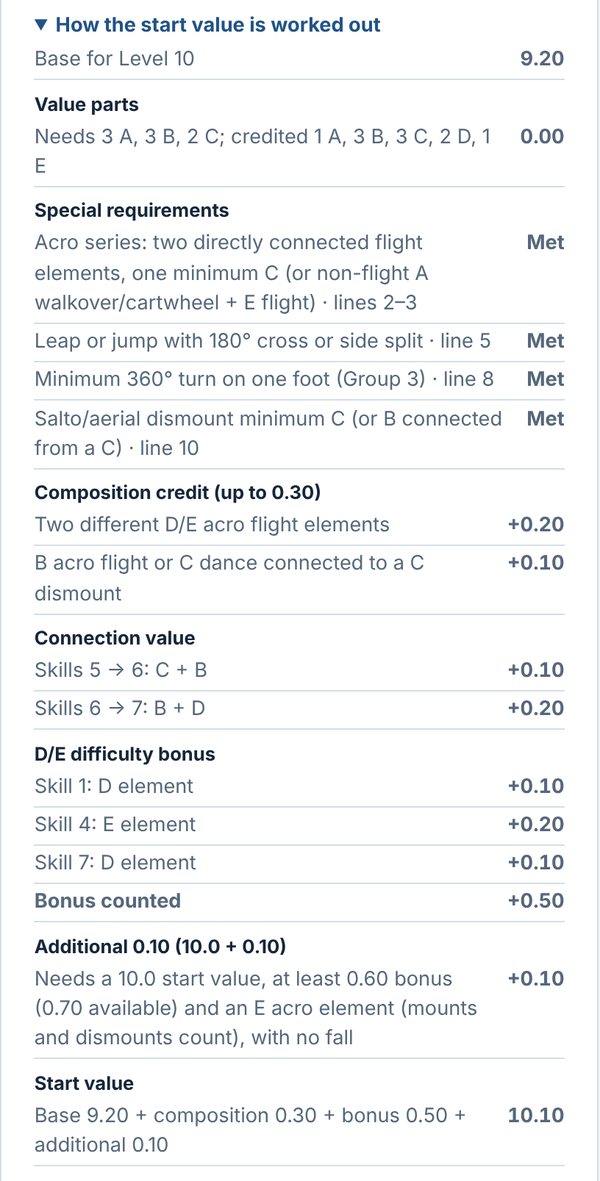
Under each routine, tap How the start value is worked out to see the whole calculation, line by line:
- Base start value for her level.
- Value parts needed and credited, with the deduction for anything missing. A higher value part can stand in for a lower one.
- Special requirements, each marked Met or with its deduction, and the skill lines that met it.
- Composition credit, connection value and D/E bonus where her level has them, and how much bonus is counted.
- Restricted elements, repeated skills and a missing dismount, if any.
Level 10: the additional 0.10
A Level 10 routine can start from 10.1. It needs a 10.0 start value, at least 0.60 in bonus, and a qualifying skill, performed with no fall:
- Beam: an E acro element. Mounts and dismounts count.
- Floor: an E acro element, except #6.501 (front 2/1 twist).
- Bars: a single-bar D release, or any E release (not the dismount).
The panel shows an Additional 0.10 line saying whether it's earned and why.
10. Reports for families
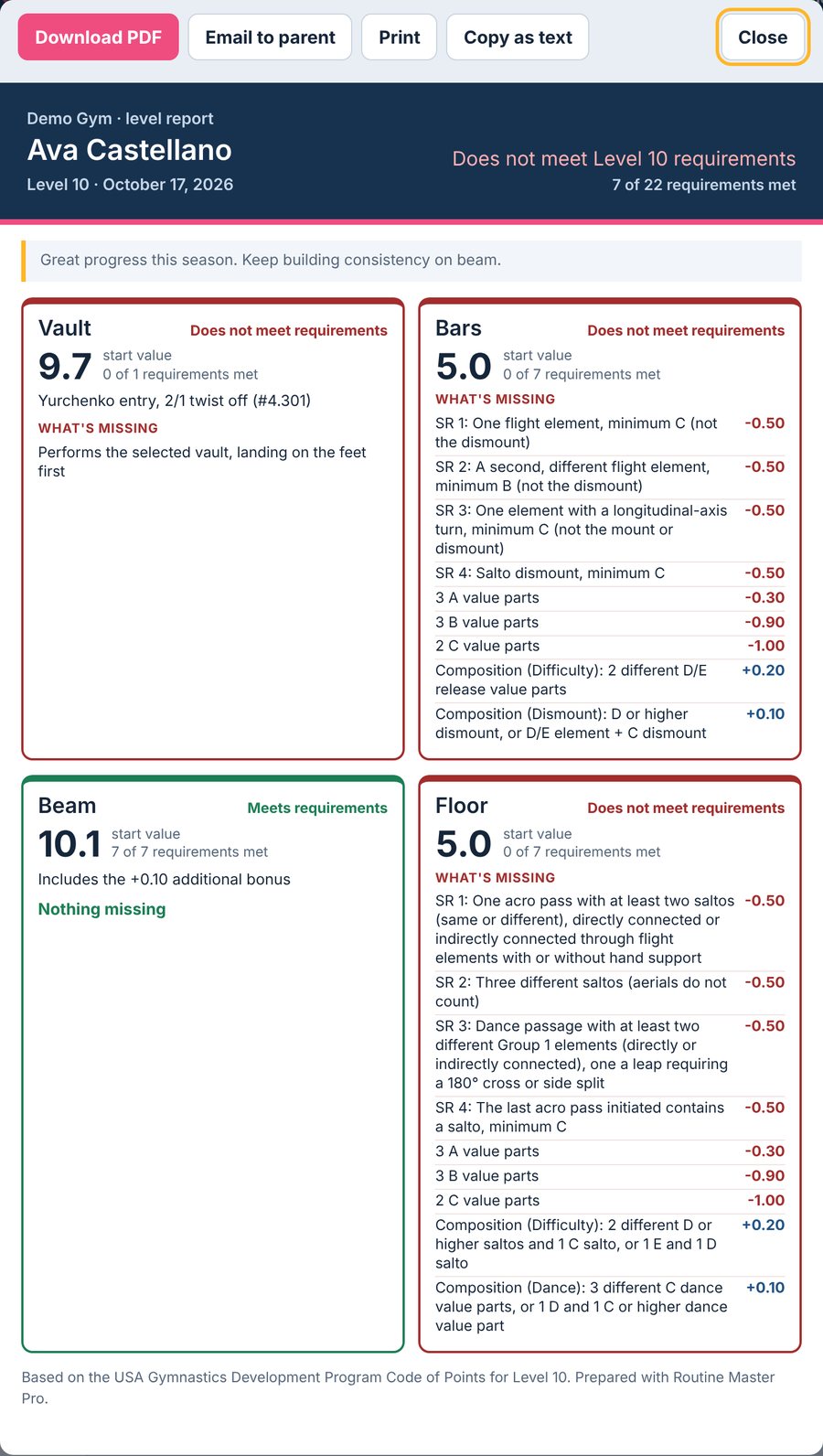
Tap Open report on a gymnast's page for a one-page report written for families. It shows whether she meets her level, her start value on each event, what she's missing and your notes.
| Button | What it does |
|---|---|
| Download PDF | Saves the one-page report as a PDF. |
| Email to parent | Emails the PDF straight to the parent email on her page. It comes from your gym's name, and when a parent replies, the reply goes to you. |
| Share PDF | On phones and tablets: opens the share sheet with the PDF attached, for Mail, Messages and other apps. |
| Prints the report. | |
| Copy as text | Copies a plain-text version to paste anywhere. |
Email a whole level at once: on the roster tap Tools, then Email level reports to parents (or tap Email … reports to parents on the Team report). Pick a level, untick anyone you want to skip, then tap Email N reports. Each parent gets their own gymnast's report in a separate email, and you see Sent or Not sent next to each name. Gymnasts with no parent email or no routines yet are skipped.
Print a whole level at once: tap Tools, then Print all level reports (or Print every … report on the Team report). Pick a level, untick anyone to skip, then tap Print N reports. Each gymnast starts on a new page; Download as one PDF saves it as one file instead. When the reports are ready, the print window opens by itself on a computer; on a phone or iPad (or if nothing opens), tap Open to print and print or share from the PDF.
- After an email goes out, the report shows Last emailed with the date and address.
- Each report can be emailed once a minute, so a double tap doesn't send it twice.
- If there's no parent email on her page, the app asks you to add one first.
11. Breakdown, skill ideas, moving up and inquiries
Routine breakdown (coach copy)
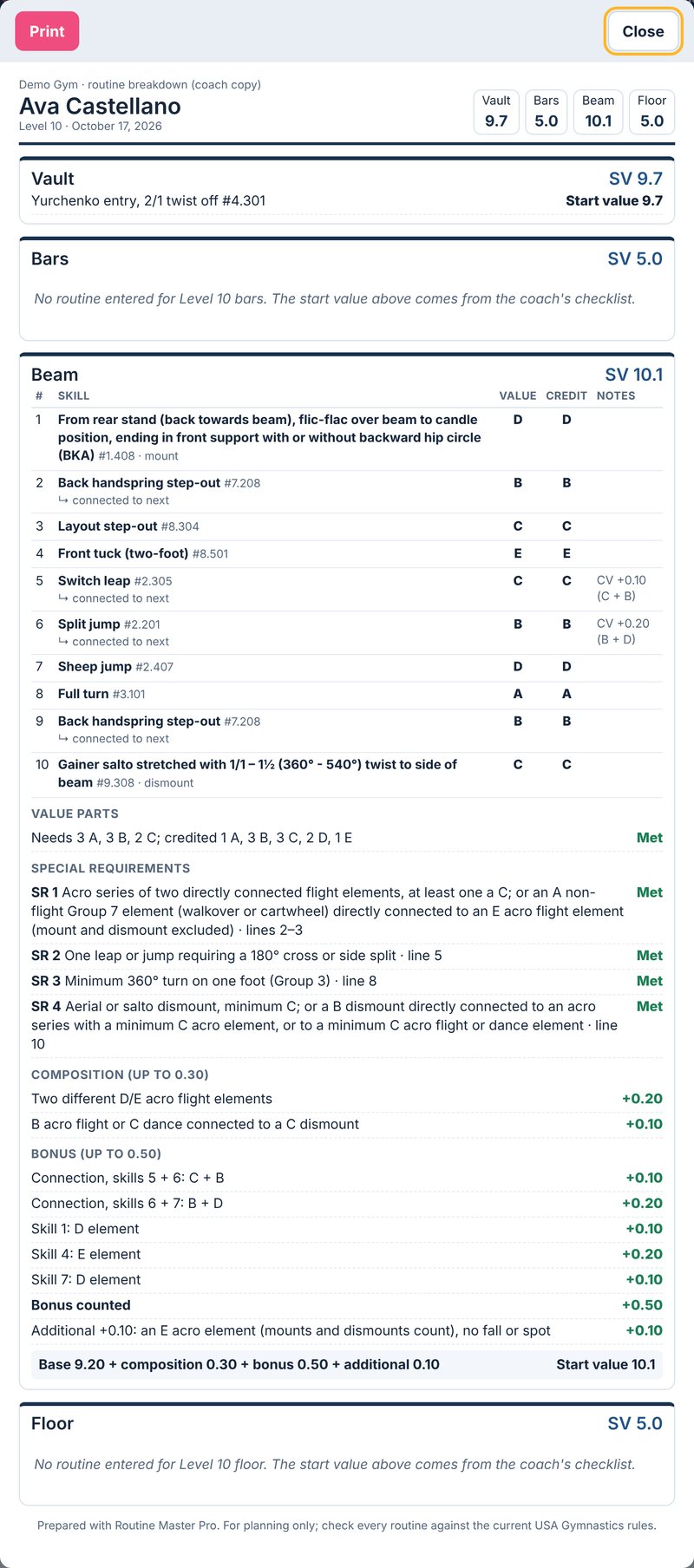
Open Tools on her page and tap Routine breakdown for a printable sheet of every routine, skill by skill. It shows the value of each skill, the credit she's actually getting, connection value and notes, then every requirement, composition and bonus line, and the final start value. Use it in the gym or with your staff. Tap Print.
Skill ideas
Open Tools on a gymnast's page and tap Skill ideas. For each special requirement she's missing, the app lists skills that would meet it, and the start value she'd have with each one. Every idea is tested by adding that skill to her current routine. Skills marked "popular" are among the most used at her level across gyms.
Moving up: Try at another level
In Tools, tap Try at another level and pick the level (for example Level 9, or the next Xcel division). Each event shows her routine skill by skill, judged by that level's rules: her start value there, what she'd be missing, skills that get no credit or count lower, and whether her vault is on that level's chart.
- Try changes: Swap a skill, ✕ to take one out, Connect, + Add skill, or try a different vault. Start values update as you go. It's only a test: nothing changes on her page. Undo my changes puts an event back.
- Coach checks: tick the items she can already do (things judged by eye, like heights and angles).
- Parent report: type an optional note for parents, then tap Parent report for a one-page readiness report ("Working toward Level 9" or "Ready: meets every Level 9 requirement") to download, print or email to her parent.
- Move her to Level 9 moves her up for real, with the routines you tried. Her old routines stay saved.
Compare to other gyms
In Tools, tap Compare to other gyms to see her start value on each event next to the average for her level across every gym, the difference, and how many gymnasts at that level meet every requirement. Averages show once at least 3 gyms have gymnasts at her level.
Score inquiry form
At a meet, open Tools and tap Score inquiry and pick the event. The official USA Gymnastics score inquiry form is filled in from her routine: elements, bonus and expected start value, fitted to one page.
- Tick the reasons for the inquiry and add details. Only ticked reasons print.
- Change anything you need to on the form. Refill from routine puts back what the app filled in.
- Tap Print or Download PDF.
12. Find a skill, Level rules, team report, trends and insights
Find a skill
Open Tools at the top of the roster and tap Find a skill to look up any skill without building a routine. Pick a level and an event (Vault, Bars, Beam or Floor), then type a name, nickname, Code number or words from the Code. Tap a value (A, B, C...) to see only skills of that value. Tap a skill to see its full Code wording, the other names coaches use for it and the Code page.
Level rules
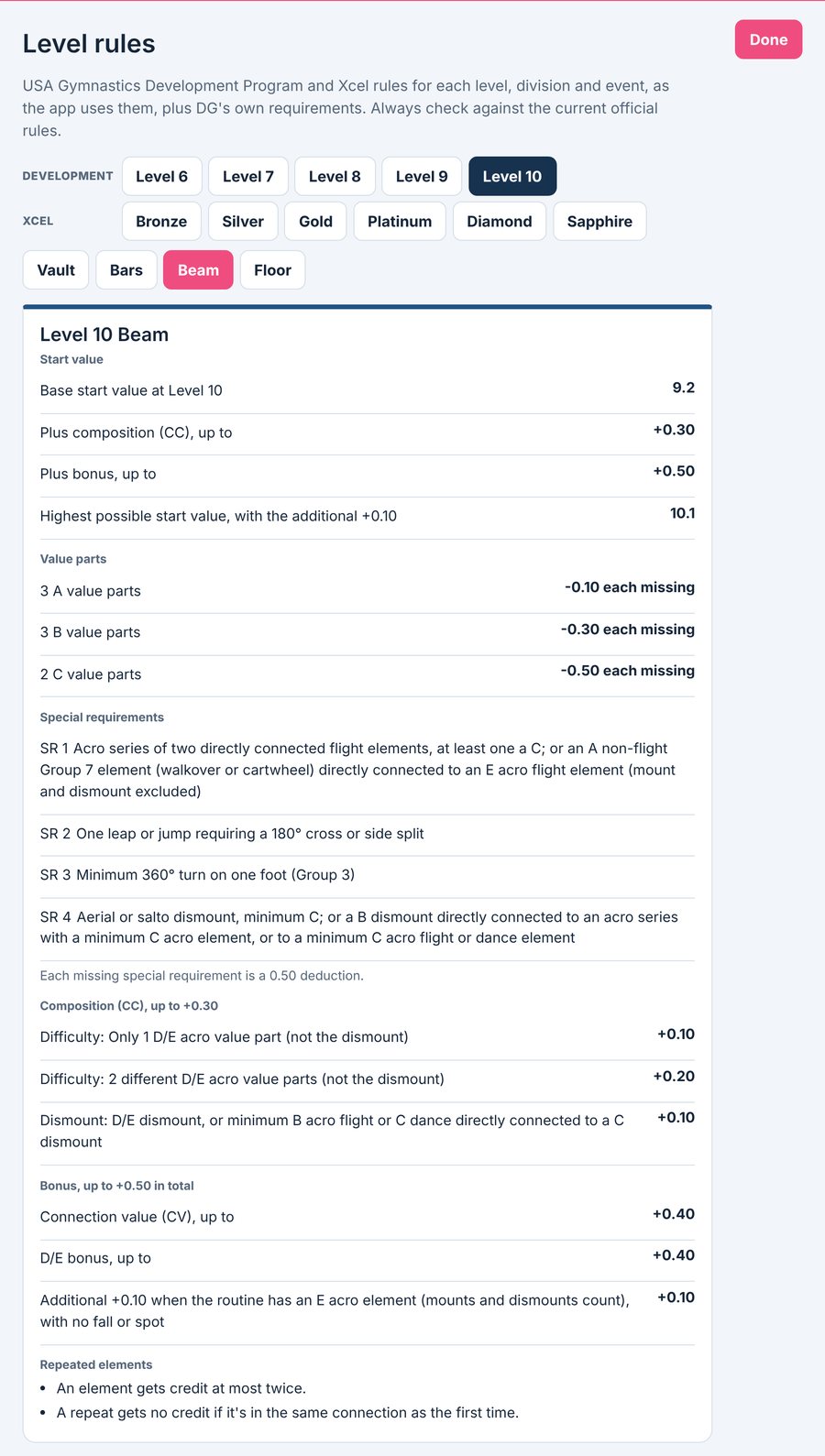
Open Tools at the top of the roster and tap Level rules. Pick any level or Xcel division and an event to see every rule at a glance, without opening a gymnast:
- Base and highest possible start value
- Value parts and special requirements
- Composition, connection and bonus rules
- Restricted elements and repeat rules
- Your gym's own requirements
- For vault, the full vault chart with values (search by name or number)
Skill trends
In Tools, tap Skill trends to see the most common C, D and E skills on each event, at each level, across every gym using Routine Master Pro. Filter by type, such as releases, dismounts or saltos. The list shows totals only: no gym or gymnast names, and a skill appears only once at least 3 gyms use it.
Team report
Open Tools at the top of the roster and tap Team report for a one-page view of a whole level: every gymnast's start value and status on each event (Ready, Team min, or how many requirements she has), the team's average on each event, and the most common gaps across the level. Switch levels at the top and tap Print for staff meetings.
Level insights
In Tools, tap Level insights and pick a level or Xcel division. For each event you'll see the average start value across every gym, the share of gymnasts who meet every requirement, the range of start values, and the USA Gymnastics requirements gymnasts most often miss. Like skill trends, it shows totals only and appears once at least 3 gyms have gymnasts at that level.
13. For gym owners
Gym owners and admins have a Gym settings button at the top. It's one place for setting up your gym: inviting coaches, your requirements and minimum start values, event tablets, and your plan.
Coaches are listed under the tiles. With Practice on, tick Can share assignments with other gyms next to a coach to let them share your gym's assignments in the Shared library. Owners and admins can always share.
Requirements and minimums
Open Gym settings and tap Requirements & minimums. For each level and event you can:
- Set a minimum start value to compete. A gymnast who reaches it but isn't at 10.0 shows gold.
- Add your own requirements, such as "Back handspring series on beam". They appear on every gymnast's checklist at that level as boxes for coaches to tick.
Tap Done to go back to the roster.
Coaches
- Gym settings → + Invite a coach: enter the coach's name and email. A temporary password is made for you, and the coach is emailed their sign-in (the app's address, their email and the temporary password). They choose their own password when they first sign in. If a coach can't find the email, open Gym settings and tap Email sign-in details next to their name (it shows until they've signed in); ask them to check their spam folder too.
- Gym settings lists every coach at your gym and when they last signed in. For each coach:
- Turn login off blocks them from signing in until you turn it back on. Nothing is deleted.
- Reset password gives a new temporary password to pass on, and signs them out everywhere.
- Remove deletes their login. Your gymnasts and routines stay with the gym.
Trial and subscription
- Free trial: new gyms get 5 days with up to 5 gymnasts. Emailing, printing, downloads and inquiry forms unlock when you subscribe, and trial reports show a TRIAL watermark. A banner counts down the days.
- Plans: Small covers up to 30 active gymnasts; Unlimited has no limit. Founding Club gyms (joined by December 31, 2026) get unlimited gymnasts at the Small price for 2026–27 and 2027–28. Archived gymnasts don't count.
- Subscription: runs for the season, July 1 to June 30. From June 1 you'll see a reminder to renew.
- Frozen account: if a subscription isn't renewed by June 30, or a trial ends without a plan, the account is frozen. Coaches can still sign in and view everything, but changes, emailing, printing and downloads are paused until you renew. Your gymnasts and routines are always kept.
To subscribe or renew, owners tap Choose a plan (or Renew) in the banner and pay by card through Stripe. Your gym unlocks straight away and Stripe emails your receipt. Need an invoice instead, for example to pay by check? Open Need an invoice instead? on the same screen.
Have a coupon code? Open Have a coupon code? on the same screen, type it and tap Apply. The price you pay updates before you go to payment. A free trial code gives your gym a longer free trial instead: tap Start my trial. New gyms can also type a code on the sign-up form on our website.
Coach Master Pro
Assignments, Testing, event tablets and tryouts come with Coach Master Pro, which also includes everything in Routine Master Pro. It's one plan: $49 a month or $490 a year (two months free), with unlimited gymnasts and coaches. New clubs get a 14-day free trial.
- Move up: owners tap the locked Assignments or Testing button, then Pay monthly or Pay yearly, and pay by card through Stripe. Coach Master Pro switches on as soon as the payment goes through.
- Founding Club credit: Routine Master Pro Founding Club clubs get $49 off their first payment (monthly: the first month is free).
- Try it free: owners of a Routine Master Pro club can try Coach Master Pro free for 14 days. Tap the locked Assignments or Testing button, then Try it free for 14 days. No card needed, and your routines stay exactly as they are.
- Just joined with Routine Master Pro only? The first time an owner signs in, a thank-you note lists everything in Coach Master Pro and offers the free 14-day trial: tap Start my free 14-day trial, or Maybe later and start it any time from the locked Assignments or Testing button.
- When the free trial ends: nothing is charged, because the trial never asks for a card. Assignments and Testing become view-only (everything stays saved) until the owner subscribes. Your routines keep working if you pay for Routine Master Pro. Owners get an email 3 days before the trial ends, another on the last day and one just after it ends, and the app shows a reminder in those last days. Each one has a button that opens the payment screen.
- Coupon codes: got a code from us? Tap Have a coupon code? on the Coach Master Pro plan screen, type it and tap Apply. The pay buttons show your new price. A free trial code gives you a Start my free trial button instead. You can also type a code when you sign up on the Coach Master Pro website.
- Change your card or cancel: Gym settings → Plan & payment → Change card or cancel. When you cancel, you keep everything until the end of what you've paid for; after that it's view-only and nothing is deleted.
14. Xcel gymnasts
- Add an Xcel gymnast by choosing Xcel and her division: Bronze, Silver, Gold, Platinum, Diamond or Sapphire.
- Start values follow the Xcel Code of Points (2022–2028, revised August 2026): restricted elements, value parts, special requirements, the repeat rule, and the Sapphire bonus.
- The skill picker only offers skills allowed in the Xcel Code, including Xcel-only elements like casts and tap swings. Vault uses the Xcel vault chart.
- On bars, each skill has an LB/HB button. Tap it to mark the low or high bar, so high-bar requirements and dismounts are checked correctly.
- Some requirements depend on things the app can't see, such as cast height or angles. Those are boxes for you to tick.
15. FIG and Elite gymnasts
- Add an elite gymnast by choosing FIG / Elite as the Program, then her level: FIG Senior, FIG Junior, USA Senior, USA Junior, Hopes 13–14 or Hopes 11–12.
- There's no 10.0 start value. The app works out her D-score from the FIG Women's Artistic Gymnastics 2025–2028 Code of Points: the 8 highest values including the dismount, plus up to 2.00 for composition requirements, plus connection value (and series bonus on beam), plus 0.20 for a D or higher dismount.
- USA Senior and USA Junior use the full FIG Code, as USA Gymnastics elite meets do. FIG Junior uses the Junior changes: F and higher skills count as 0.50, no dismount bonus, and no double salto vaults. Hopes follow the USA Gymnastics 2026 Hopes modifications; Hopes 11–12 has its own composition requirements.
- Mark the links between skills (Connected, or Direct / Indirect on floor) so the app can give connection value, find the beam acro series and floor acro lines, and pick the floor dismount (the highest salto in the last acro line).
- Each skill shows whether it's in the top 8. Tap How the D-score is worked out under the routine for the full breakdown. If a composition requirement is ticked wrongly, tap it to mark it yourself.
- Two versions in one box: when the Code lists a version "also with ½ turn" or a different grip or twist in the same box, it is its own pick (for example "Clear hip circle to hstd" and "Clear hip circle to hstd with ½ turn"). Pick the one she does, since only some versions meet a requirement. Doing both counts as a repeat.
- Bars: only 3 skills from the same root skill count. A 4th says "no value", and Level rules lists how the app groups bars skills. To mark an empty or intermediate swing, tap the link between two skills until it says Empty swing. That takes away the connection value for the skills around it.
- Beam: jumps listed "from cross position" have a Done in side position box. Tick it and the jump counts one value higher.
- Vault shows the vault's D-score from the FIG vault table. Your gym can set a minimum D-score per event in Gym settings, just like a minimum start value.
- Execution (the E-score) is judged and isn't part of the D-score. The score inquiry form is for USA Gymnastics Development meets, so it isn't offered for FIG / Elite gymnasts.
16. Questions and fixes
I can't find a skill.
Try searching by Code number, or a shorter word ("layout" instead of "layout step-out"). Clear the value and type filters. For Xcel gymnasts, skills not in the Xcel Code aren't offered.
The start value looks wrong.
Open How the start value is worked out. Check the skill order and the connections between skills, since those decide connection value and some requirements. If it still looks wrong, send a screenshot to Routine Master Pro and we'll check it against the Code.
A parent didn't get the email.
Check the parent email on her page for typos, and ask them to look in spam. The report shows when it was last emailed and to which address.
Buttons show a lock.
Your gym is on a free trial or its account is frozen. Those features unlock when your gym subscribes or renews.
Did my changes save?
Look at the top right. Saving... means it's on its way; All changes saved means it's done. The app waits until you stop tapping or typing for a moment, then saves everything at once. If the gym's WiFi drops, your changes stay on screen, you'll see Save failed. Retrying..., and the app keeps trying until it gets through. Keep the page open until it says All changes saved.
I see an old version, or another coach's changes are missing.
Tap Refresh. On a computer you can also reload the page.
How do I ask a question?
Tap Help at the top of the app, then Ask a question. While you type, a box may show This might answer it with a quick answer. When you send, common questions (passwords, adding coaches, parent emails, emailing every parent, billing) get an automatic answer straight away. Tap Yes, thanks if it helped, or No, I still need help. A person from our team still reads every question, answers here in the app and emails you. Questions about a skill, a value or a start value are always answered by a person.
My login stopped working.
Use Forgot password?, or ask your gym owner. If the app says your login or gym is turned off, contact your gym owner.
Routine Master Pro is a planning tool. While every effort is made to follow the complete Code of Points, it's up to the coach to verify that all information is correct against the current USA Gymnastics rules.